Manual
Using Yapaia Go
Enter your vehicle, find a destination, drive off – and what the buttons do on the way.
The setup wizard
When you open Go for the first time, you confirm the notes on use: everything shown is guidance, and the person at the wheel remains responsible. Then Go asks five questions:
- Language and units
- Map – which region you need (see Maps and map server)
- Your vehicle – height, width, length, weight
- Position – how Go knows where you are
- Home Assistant – usually happens by itself
Your vehicle
Enter the dimensions including roof box, air conditioner and bike rack – whatever really has to fit under the bridge. Under ⚙ → Fahrzeuge (vehicles) you can create several profiles, e.g. “Camper” and “Camper with trailer”. You choose which one applies at the top of the route panel when planning – Go then recalculates the route with those dimensions right away.
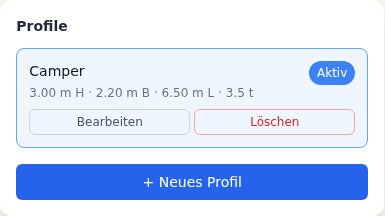
From 2.70 m height, Go points out that height limits on small roads are not always mapped in OpenStreetMap. Keep your eyes open.
Where does the position come from?
| Source | When it makes sense | Setting |
|---|---|---|
| USB GPS receiver | built in, always reliable | add-on configuration: gps_source: usb |
| Phone with the Home Assistant app | no receiver available | gps_source: companion_app |
| Tablet browser | for trying things out | always works |
Find a destination and go
- Tap the search field at the top: address, place or campsite.
- Tap a result → the route appears with arrival time and length.
- Go – Yapaia switches to drive mode.
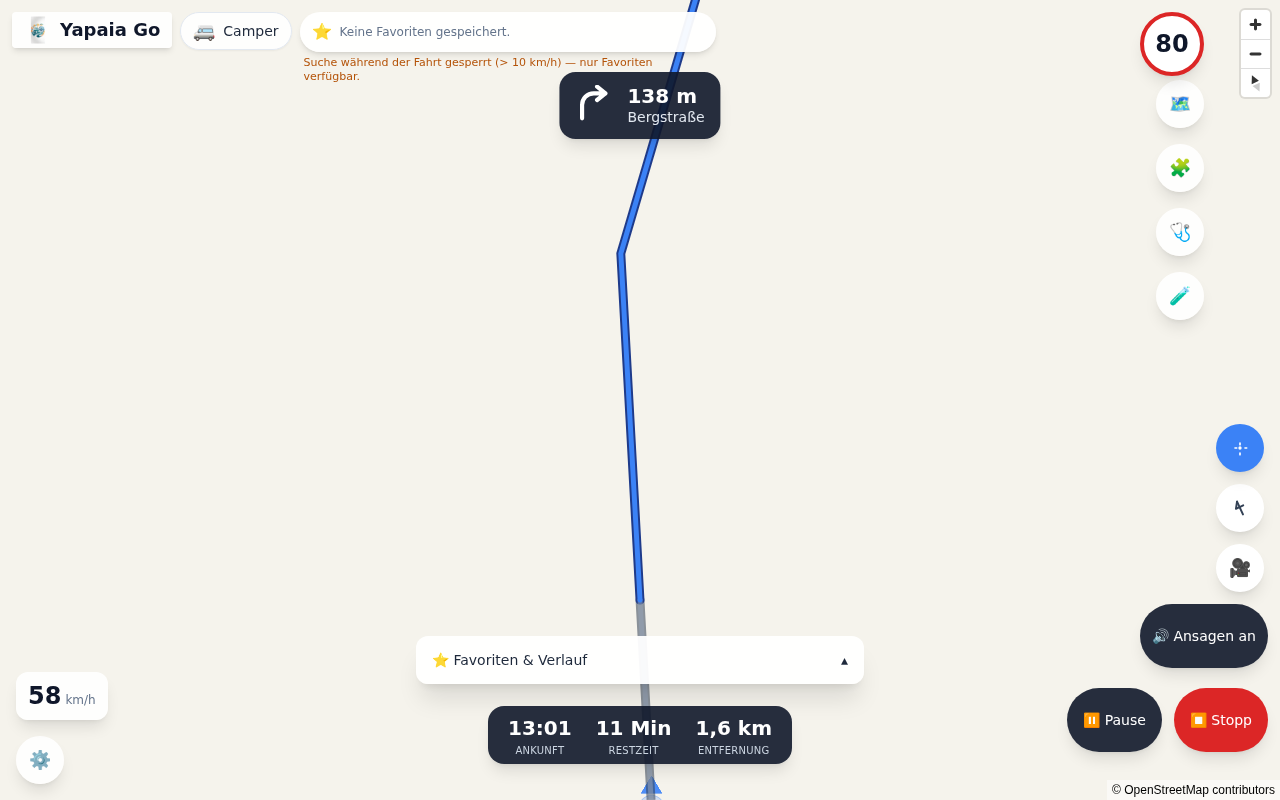
In drive mode you see the next turn, the speed limit, your speed, arrival, remaining time and distance. If you leave the route, Go recalculates by itself.
On the road
- Lane guidance: from 500 m before a turn or exit, the instruction shows the lanes, with the right one highlighted – wherever the map knows the lane arrows.
- Trip menu: tap the bar with arrival, remaining time and distance to pause, stop or turn announcements on and off.
- Find along the way (“Unterwegs finden”): fuel, parking, motorhome site, campsite, supermarket, dump station, water, gas, toilet – Go shows the nearest ones ahead on your route. One tap makes it your next stop.
- Announcements: under ⚙ → Sprache & Home Assistant → Ansagen über (announcements via) you choose the speaker, e.g. a voice satellite. If Yapaia Beat is running, the announcement blends into the radio.
Online services (optional)
Under Online services → Allow online services in the add-on configuration, you can allow Go to ask third-party servers while a connection is available. This is off by default.
- Traffic from Germany’s motorway operator (Autobahn GmbH): roadworks, closures, jams and accidents along your route, German motorways only. Jams colour the route and extend the arrival time.
- Fuel prices: request a free key from Tankerkönig and enter it as the Tankerkönig key. The price follows the fuel type in your vehicle profile; German petrol stations only.
- More about a place, and a map style with satellite imagery.
Your position and your route are not transmitted. For fuel prices only the approximate area of the petrol stations goes out; for place details only the name and coordinates of the place you tapped.
Safe to operate
- Above 10 km/h, search, settings and vehicle profiles lock. Stop or pause the navigation to change something.
- Buttons are big enough for a thumb on cobblestones.
- Left- or right-hand drive: the controls can be mirrored.
- The screen stays awake while driving.
Destination by voice or from Home Assistant
- In Home Assistant, the device “Yapaia Go” has an Enter destination field.
- With a voice assistant (e.g. Yapaia Satellite): „Fahre mich nach Magdeburg“ (take me to Magdeburg) – voice commands are in German.
- In automations: action Yapaia: Go set destination.
Test drive without moving
Under Settings → Add-ons → Yapaia Go → Configuration, in the advanced section, you can unlock gps_simulator (then restart the add-on). A dot then drives your route – ideal for trying announcements. Switch it off again afterwards.
Add-ons and marketplace
In Go’s add-on store you can install extensions. If you enter a marketplace there, Go only installs packages the marketplace has signed (“✓ Geprüft” – verified). Paid add-ons receive a licence for exactly your Go installation. Your own unsigned add-ons only work with developer mode switched on.
The health check
The stethoscope icon 🩺 opens the installation check (“Installationsprüfung”). It tells you in plain words what is missing (map, routing, GPS) and what you can do.